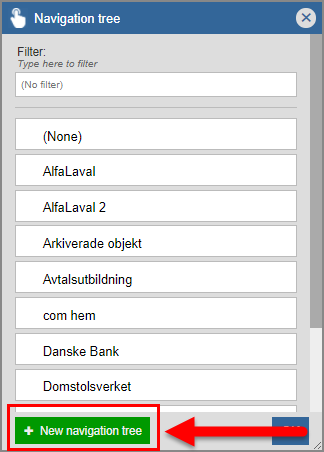
Click the field found at the top of the navigation window (see the first image below). Clicking the field found at the top of the navigation window will open a list of navigation trees. In the list of navigation trees you will find a button called "New navigation tree" (see the second image below).
Click the button called "New navigation tree" (see the first image below). When you click the button called "New navigation tree", a new navigation tree will be created. At the same time as a new navigation tree is created, the navigation tree's navigation tree card will open (see the second image below). In the navigation tree card you will find four tabs: "General", "Structure", "Security" and "Operations".
Within the "General" tab you can:
set a name for the navigation tree you have created
set a popular name for the navigation tree you have created
specify that the navigation tree you have created should be set as default in Pythagoras Web
specify that the navigation tree you have created should be available in Our Pages
specify that the navigation tree you have created should be used in Pythagoras Energy
set navigation types for the navigation tree you have created.
Within the "Structure" tab you can:
add navigation folders to the navigation tree you have created
add buildings to the navigation tree you have created
create new buildings.
Within the "Security" tab you can allow one or more user groups access to the navigation tree you created.
Within the "Operations" tab you can delete the navigation tree you created.
For more information on how to
set a name for the navigation tree you have created, see section 5.7.1.
set a popular name for the navigation tree you have created, see section 5.7.2.
specify that the navigation tree you have created should be set as default in Pythagoras Web, see section 5.7.3.
specify that the navigation tree you have created should be available in Our Pages, see section 5.7.4.
specify that the navigation tree you have created should be used in Pythagoras Energy, see section 5.7.5.
set navigation types for the navigation tree you have created, see section 5.7.6.
add a navigation folder to the navigation tree you have created, see section 5.7.7.
add buildings to the navigation tree you have created, see section 5.7.8.
create a building, see section 5.6.11. or section 5.8.
allow one or more user groups access to the navigation tree you created, see section 5.7.9.
delete the navigation tree you created, see section 5.7.10.